ShikataLab v2 - [Part 2]: ARM and Steam-Server Support
The Challenge
I’m starting to hit the issue more and more where my friends and I want to play games that are primarily compiled for ARM; in general, this isn’t usually a challenge, but specific to games like Counter-Strike 2 it seems impossible to run without a lot of fuss outside of Docker
The ““solution””
In the past, using stuff like Wine or Proton solved a lot of these problems for me; specifically running things like QEMU within my box to be able to emulate simple programs
This isn’t really doable with CS2. As a modern game, it primarily depends on a good amount of performance along with coverage of most of x86_64 system calls to function properly
After deliberation, and heavy inspiration from this Github repo from zThundy - I ended up primarily using Box64 for most of the emuation, this is for two reasons:
- Stability
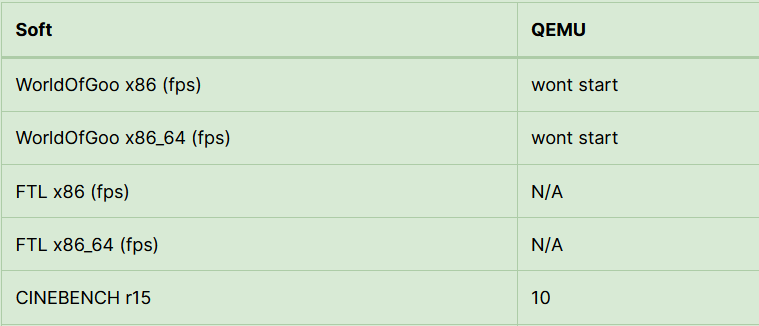
Notoriously, Benchmarking comparatively for a few example games show a trend, most underlying games straight up will not start with QEMU emulation - I was encountering this with many underlying programs I attempted to emulate using QEMU - this caused me quite a few challenges in general, and made the underlying spin-up of random apps and services impossible to do:
- Performance
Overall; in terms of complexity to performance, Box typically beats QEMU out of the water for similar x86_64 coverage space:
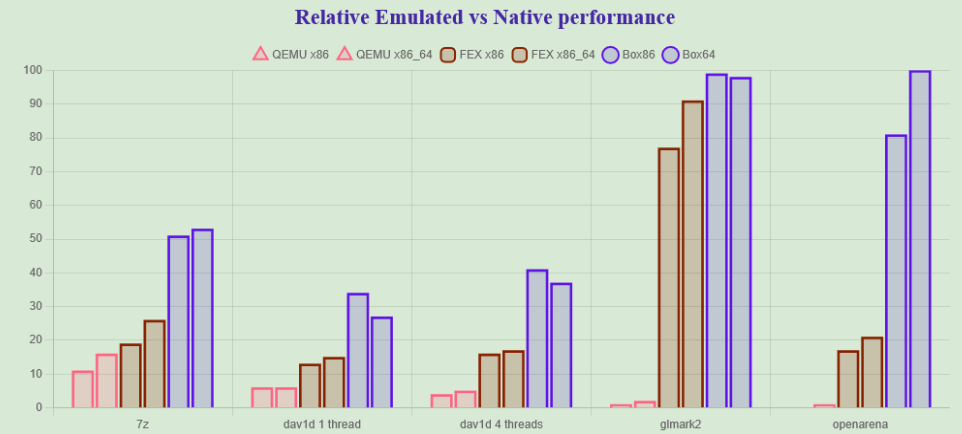
This generally means that performance within the environment is stable throughout, and that comparitive to 3D games (where QEMU drops off of a cliff) - Box64 is the only reasonable alternative with good FPS
Getting Set Up
Set up is heavily based on zThundy’s Repository - mostly word for word:
Set Up Box64
git clone https://github.com/ptitSeb/box64
cd box64
mkdir build; cd build; cmake .. -D ARM_DYNAREC=ON -D CMAKE_BUILD_TYPE=RelWithDebInfo -D BOX32=ON -D BOX32_BINFMT=ON
make -j4
sudo make install
sudo systemctl restart systemd-binfmt
# Run to ensure things work
ctest
Once done, set up Steam
Set up Steam CLI
cd
mkdir steamclient
cd steamclient
wget https://steamcdn-a.akamaihd.net/client/installer/steamcmd_linux.tar.gz
tar -xvzf steamcmd_linux.tar.gz
./steamcmd.sh
Once done, enter ‘cancel’ then start creating the CS2 stuff:
mkdir /home/steam/cs2

./steamcmd.sh
# IN STEAM CLI
force_install_dir /home/steam/cs2
login anonymous
app_update 730 validate
Adding Links and Script to Start
BOX64_DYNAREC_LOG=0 BOX64_SSE42=1 BOX64_LOG=0 BOX64_ADDLIBS=/home/steam/cs2/game/bin/linuxsteamrt64/libtier0.so:/home/steam/cs2/game/bin/linuxsteamrt64/libv8_libcpp.so:/home/steam/steamclient/linux64/steamclient.so /home/steam/cs2/game/bin/linuxsteamrt64/cs2 -dedicated -port 27015 +exec autoexec.cfg
Updates and QoL
By this point, the CS2 server should be working as normal, there are two additional things I ideally want to add:
- Auto updating, so I dont have to manually run the
app_updatecommand when I want to update the game - Systemctl linking to automaticlly start the app
Systemctl
First, create a systemctl link to auto start this config:
[Unit]
Description=CS2 Server
After=network-online.target
Wants=network-online.target

[Service]
Type=simple
ExecStart=/home/steam/start_cs2.sh
User=steam
Group=steam
WorkingDirectory=/home/steam
Restart=always
RestartSec=10

[Install]
WantedBy=multi-user.target
Auto-Updating
There is a good example for another game, Valheim, that is written under the Steam Community Guides - we can repurpose it using a different app_id:
(Note that I’m using /home/steam/steamclient/linux32/steamcmd based on where steam installed on my local client)
To get the latest version available:
/home/steam/steamclient/linux32/steamcmd +login anonymous +app_info_update 0 +app_info_print "730" +quit | grep -EA 1000 "^\s+\"branches\"$" | grep -EA 5 "^\s+\"public\"$" | grep -m 1 -EB 10 "^\s+}$" | grep -E "^\s+\"buildid\"\s+" | tr '[:blank:]"' ' ' | tr -s ' ' | cut -d' ' -f3
This changes each time, so we can save it, and develop a script to do the following:
- Update
- Save the new version number to a file
- Relaunch CS2
After creating a .cs2_versions folder, I have the following set up:
#!/bin/bash

# This is the script mentioned above, and will print the latest build# available
LATESTBUILD=`/home/steam/.cs2_versions/getCurrentVersion.sh`
INSTALLEDBUILD=`cat /home/steam/.cs2_versions/currentVersion.txt`
echo $LATESTBUILD > /home/steam/.cs2_versions/currentVersion.txt

if [ "$LATESTBUILD" == "$INSTALLEDBUILD" ] ; then
        echo "UpTodate! Current buildID $INSTALLEDBUILD"
        echo $LATESTBUILD > /home/steam/.cs2_versions/currentVersion.txt
else
        echo "Current build: $INSTALLEDBUILD, SteamBuild: $LATESTBUILD"
        echo "Updating....."
        # Stop CS2, and update
        systemctl stop cs2
        /home/steam/steamclient/linux32/steamcmd +force_install_dir /home/steam/cs2 +login anonymous +app_update 730 validate
        # Update the build number, then start
        echo $LATESTBUILD > /home/steam/.cs2_versions/currentVersion.txt
        systemctl start cs2
fi
This will run the update like so, and restart CS2:
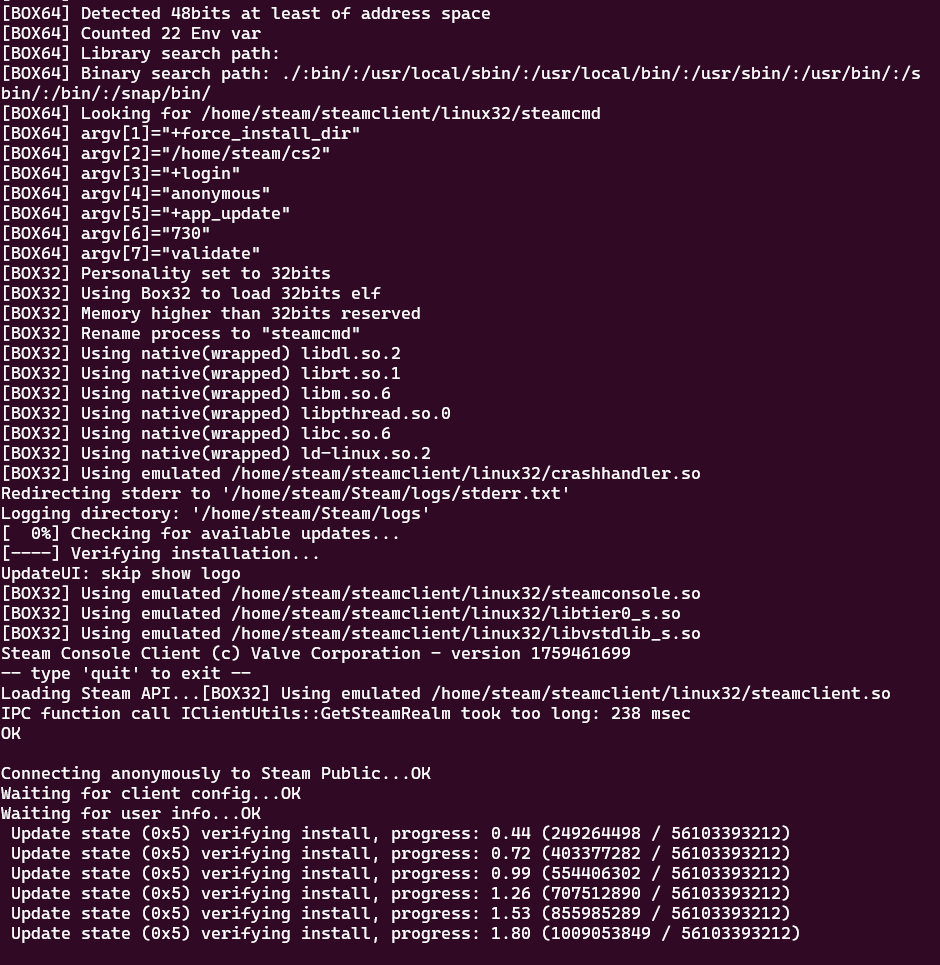
lastly, we add the following to a cron
30 17 * * 1 /home/steam/.cs2_versions/versionUpdate.sh
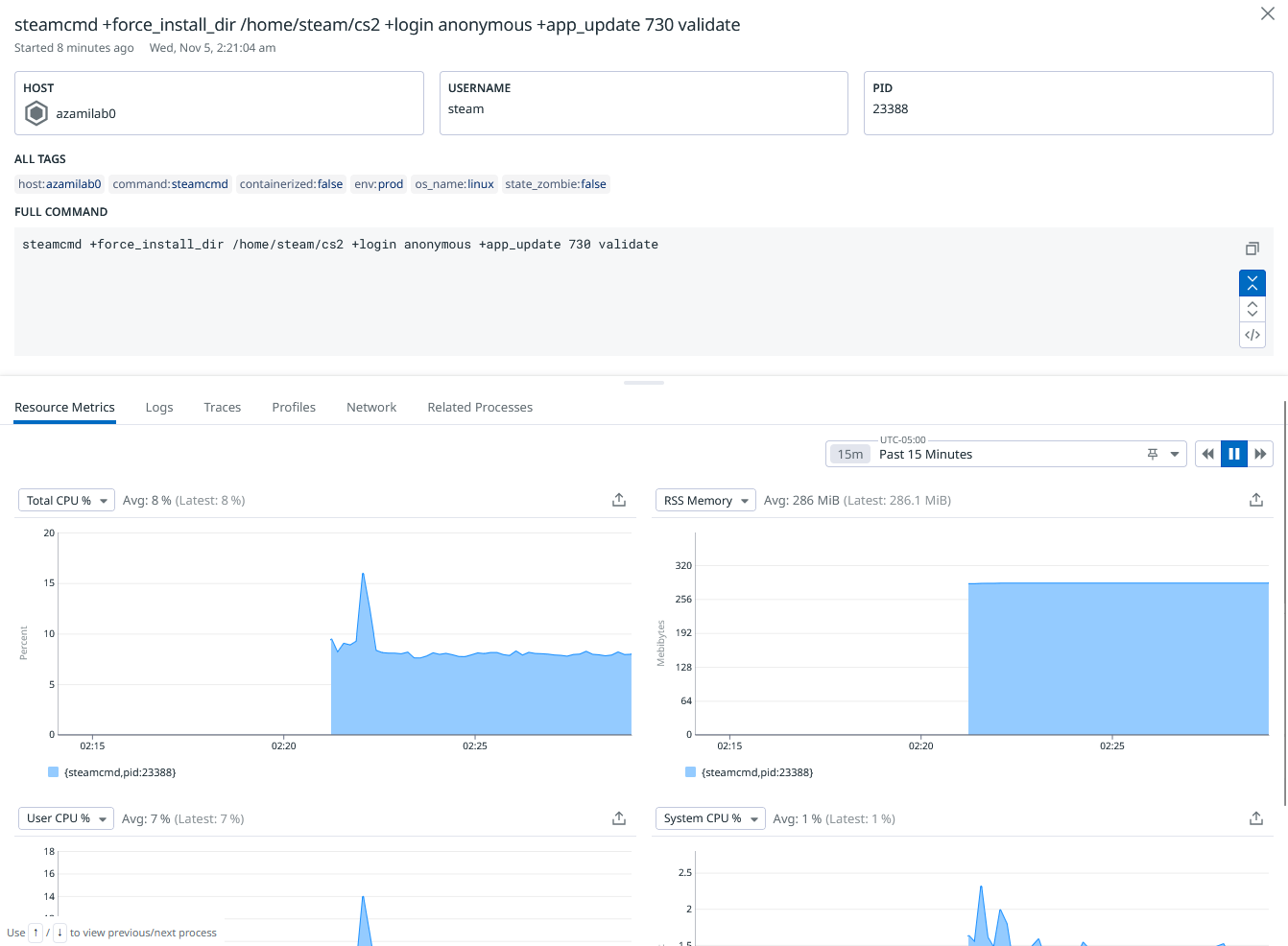
During the install, you’ll be able to see a general command running for a good chunk of time like so: